Chat
Keep the thread in front of you
Type or talk. The reply can call a tool, open a map, and pick up the facts you already filed.
Open chat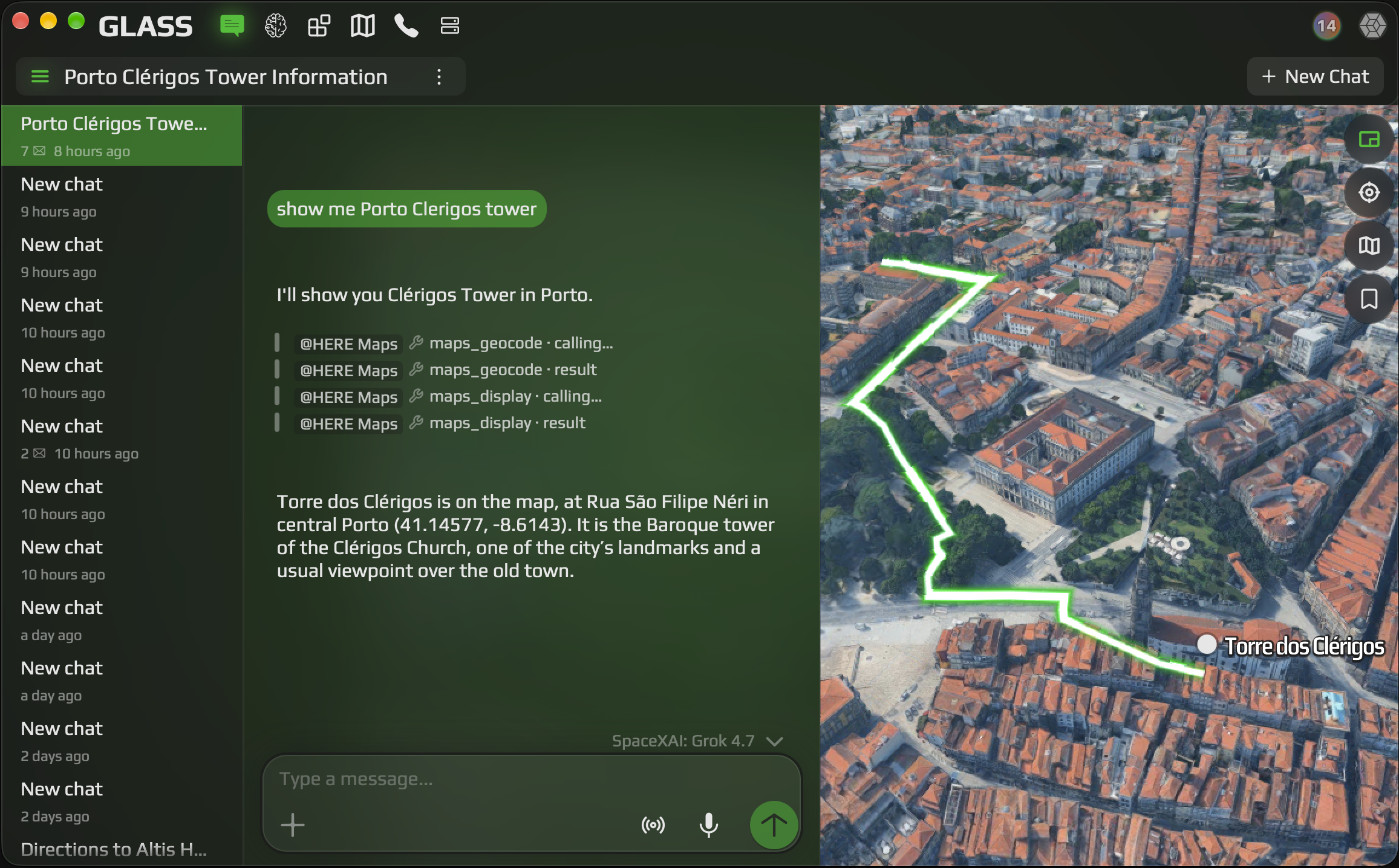
Glass is the workspace for agents, live voice, phone calls, 3D maps, and the files that come back. Open it in the browser and keep the same rooms on your phone and desktop.
Open GlassChats stay private until you share a link.
Chat
Type or talk. The reply can call a tool, open a map, and pick up the facts you already filed.
Open chat
Agents
Connect Gmail, calendars, and other tools. The agent you set up answers in chat, voice, and phone calls.
Open agents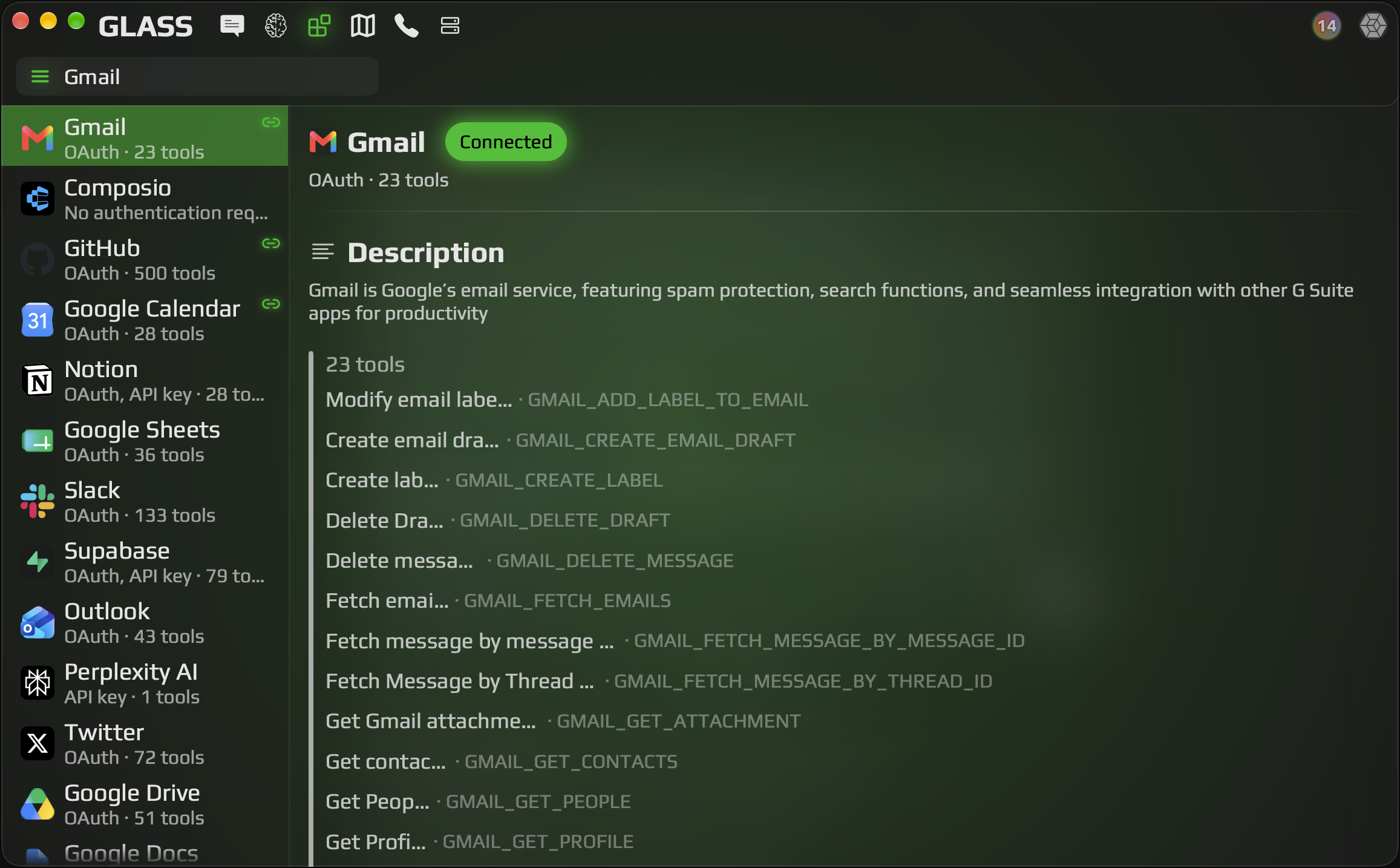
Maps
Ask for a landmark or a route and see it on a 3D map, along with the conversation.
Open maps
Calls
Instruct an agent to make a call for you, in any language and at any level of complexity.
Open callsFiles
See every file a chat creates. Keep your own files here too, and organize them into folders however you like. In a chat, tag a file or a folder from storage to include it in the conversation.
Open files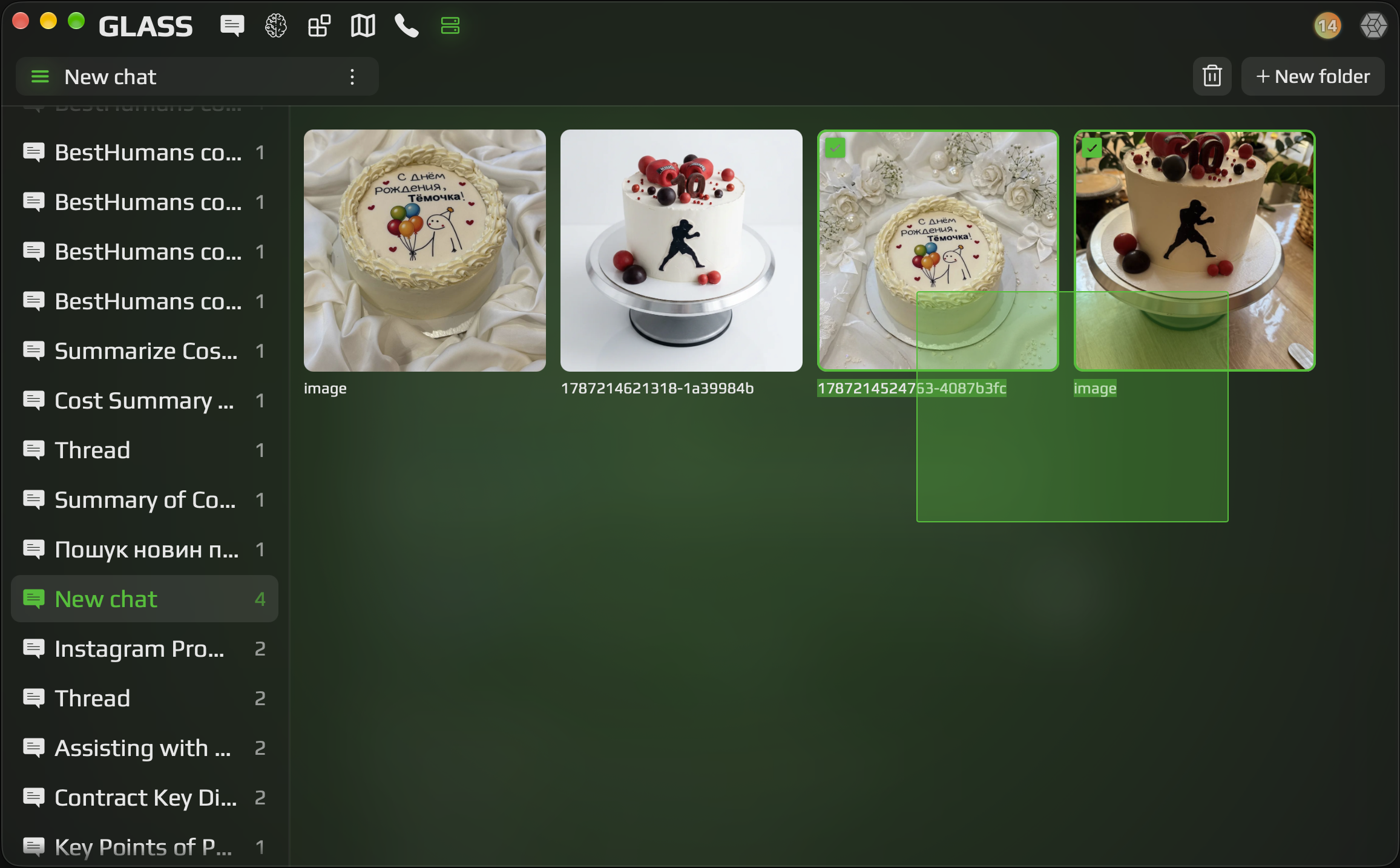
Chatmapscallsandfiles
stayinoneworkspace
01
Start a chat. The first session needs no install.
02
Stay in chat, hand work to an agent, open the map, ask for a call, or file what came back.
03
The phone and desktop apps open this workspace, so the thread is the one you already started.
Use Glass in the browser, or open the same workspace in the iOS, Android, and desktop apps.
A workspace for people who chat, run agents, use maps, ask for calls, and keep files, in the browser and in the native apps.
Yes. The site works in a phone browser. The iOS and Android app is a native shell around the same workspace.
Live voice in the app uses Gemini Live by default, or Ultravox. For a phone call, ask an agent to make the call for you.
Yes. Make a chat public and copy the share link. Anyone with the link can read it and start their own copy.
Chats are private by default. Shared links are something you turn on.
See every file a chat creates. Keep your own files here too, and organize them into folders however you like. In a chat, tag a file or a folder from storage to include it in the conversation.
Yes. The desktop app is a native window that opens this same workspace, and it opens chat when it launches.
Any model OpenRouter provides, including image and video generation.
Start in the browser.
Open Glass